
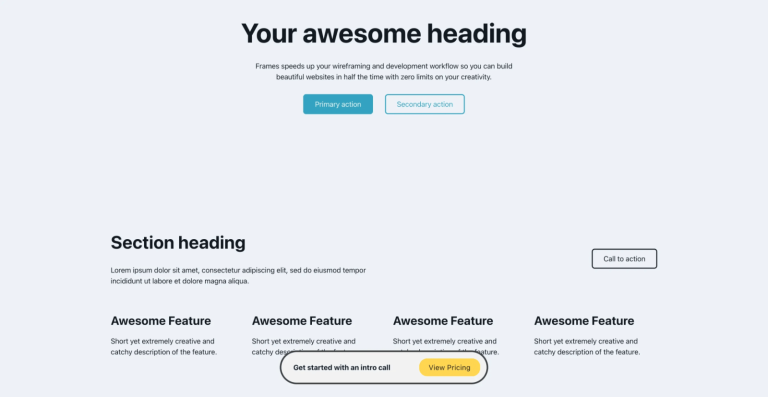
I’ve promised a few folks in the Facebook group to create a tutorial on how to create an app-like navigation in Bricks like in the image here. You don’t need to have any advanced skills to follow this tutorial. Everything I’m going to cover can be achieved by using Bricks only & a few lines of CSS which can be copied.

First Step: Create the Structure
Create your Header template and place a Container with 3 inner containers inside of it. Set the outer Container to Stretch and Horizontal.
- Create a Header template
- Place a Container with 3 inner containers inside of it
- Set the outer container to Horizontal direction, “align-main-axis: center”, width: 100% and maybe remove the padding around it (depends on your theme style)
- Make sure to assign a high z-Index Value (like 99 or so) to the outer-container (style -> layout -> z-index)
- Next set the outer container to position: fixed and bottom: 0 (see Screenshot)
Now you should see the following (note: I don’t cover any standard styles like background-color etc.):

Important Notice
You can freely style the menu according to your requirements. But whatever you’re doing – make sure that you don’t assign a background color to the outer wrapper. If you want to have a background-color, assign it to the inner containers (except the centered one -> more on the bg of the centered one later)
Add your Navigation element
Add the Bricks Nav element as a 4th Child of the wrapper Container (it’s advisable to wrap it with a container again for better styling then, but not necessary, you could also style the nav element itself).

Set the Nav Menu Element Setting “Show mobile menu toggle” to “always”. You could also use something like BricksExtras Burger Trigger or an Icon in combination with my child theme and the modal here. But in case you want to keep it simple just use the Bricks Nav Element.
Style the wrapper container of the nav element:
- Assign it a fixed Width and Height
- In my example I’m using 50px / 50px
- Border-Radius
- I’m using 50px;
- Set the wrapper-container to Position: absolute
- top: -25px <– which is half of the height of the element
Now it should look like this:

Cutting out that “half-circle” behind the menu-button
That’s where we’ll need a bit of custom CSS. Select the center Container element of your row and head over to “style –> css” and place the following into the custom CSS section:
@media screen and (min-width: 0px) {
    root {
        background: radial-gradient(
            circle at top,
            transparent 50%,
            #3f00b5 25.5%
        ) !important;
    }
}

@media screen and (min-width: 479px) {
    root {
        background: radial-gradient(
            circle at top,
            transparent 45%,
            #3f00b5 25.5%
        ) !important;
    }
}

@media screen and (min-width: 768px) {
    root {
        background: radial-gradient(
            circle at top,
            transparent 20%,
            #3f00b5 20%
        ) !important;
    }
}
How to adapt that CSS Code?
Wondering why your background now gets purple? That’s because of that hex-value (#3f00b5) inside of that snippet. Change that to the color of your choice and it will look good again! If the size of your Icon is different from mine you would need to adapt those % values to make the circle fit again!
Now the only thing that’s left is to make it responsive & to place your content. You can place your content such as Icon-Links or Text-Links for example in the left and the right Container! Regarding responsiveness you just need to click through the breakpoint-settings and style the rest of your menu, like you would with any other Bricks-Element!


1 comment
Sous
Good tutorial, i check i because i was looking for a nice mobile menu since theres no date for the builder. At the end, this tutorial is amazing and excelent but the hamburger button show the same lame off canvas right? :/
Hope to see a tutorial for a mobile menu and thanks again for this one. (sorry if it is hard to understand, i dont speak english).