
Bricks builder comes with a Password Protection template, but it is at the page-level i.e., swaps out the whole content area of a page. The built-in password protection has no element-level protection and no "password unlocked" element condition.
This Pro tutorial fills that gap with a small child theme add-on. Add one CSS class to any Bricks element and it stays hidden until the visitor enters a password. The rest of the page stays public. A single password form unlocks every protected section on the page at once.
Here's how it works after implementing the tutorial:
- Elements with the class
bl-protectedare replaced on the server with a placeholder message until the visitor is authenticated. The protected HTML never reaches the browser. - A custom Password Form element posts the password to a REST endpoint. On success, the server sets a signed, httpOnly cookie valid for 7 days and the page reloads.
- Elements with the class
bl-protected-formare shown only while the visitor is locked out. Use it on the wrapper around the form so the form disappears after unlocking. - The password is set once, site-wide, under Settings → Section Password and stored as a hash.
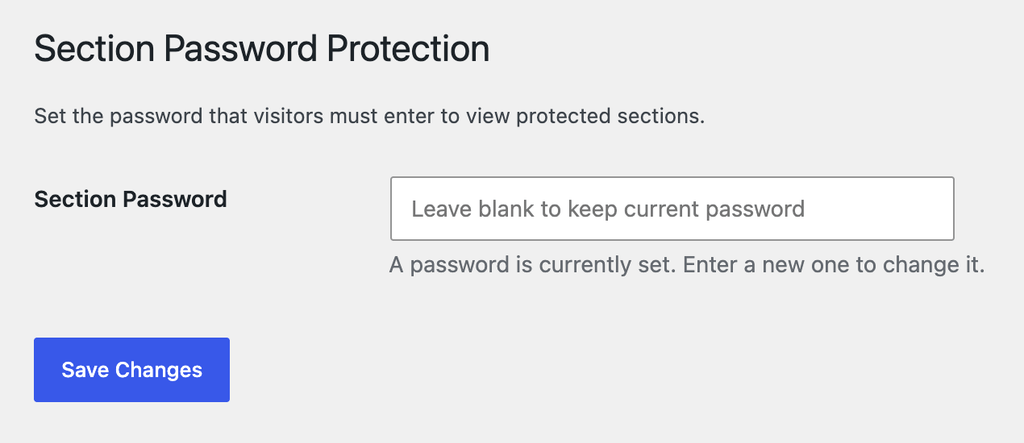
You will add three files and edit functions.php:
bricks-child/
├── functions.php                         (edit)
├── includes/
│   └── partial-password-protection.php   (new)
├── js/
│   └── partial-password-protection.js    (new)
└── elements/
    └── password-form.php                 (new)
Create the includes, js and elements folders if they don't exist yet.
Caveats
Exclude the pages where you are setting this up from page caching. The server builds a different page depending on the cookie. A full-page cache (WP Rocket, LiteSpeed, Cloudflare APO, host-level caching) may serve the locked page to visitors who already entered the password. Worse, if the unlocked page gets cached, it is served to everyone. Exclude the protected pages from caching, or tell your cache to bypass when the bl_section_access cookie is present.
Known limits:
- One password for the whole site. Every protected section on every page shares it. For a password per page, use Bricks' native Password Protection template instead. It protects the whole content area.
- No limit on attempts. The REST endpoint does not block repeated guesses. Use a long password, or add rate limiting with a security plugin or your firewall.
- Not for highly sensitive data. This is fine for gating member resources, client previews or pricing. It isn't real user authentication. Anyone who knows the password can share it.
- Logged-in admins get no bypass. Admins see the form like any other visitor. Use the builder to see the protected content, or unlock once in your browser.
Step 1: Add the protection logic
Create includes/partial-password-protection.php in the child theme having the following code:
