10th Mar '26
/
0 comments

WooCommerce Products Live Search in Bricks

This Pro tutorial provides the steps to set up a live search for WooCommerce products in Bricks.
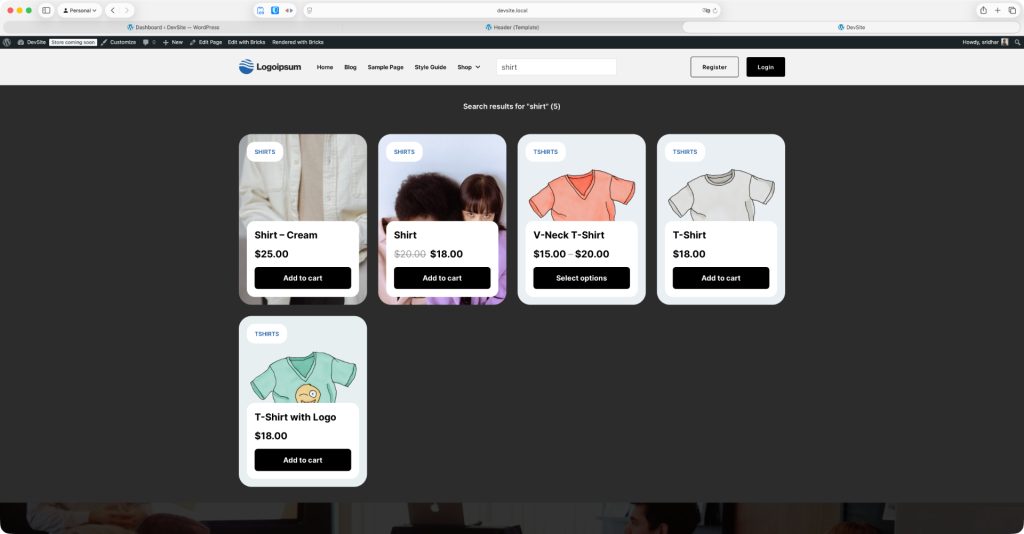
Note: Bricks' live search works with any type of query, not just posts.

Step 1

Edit Header template with Bricks.

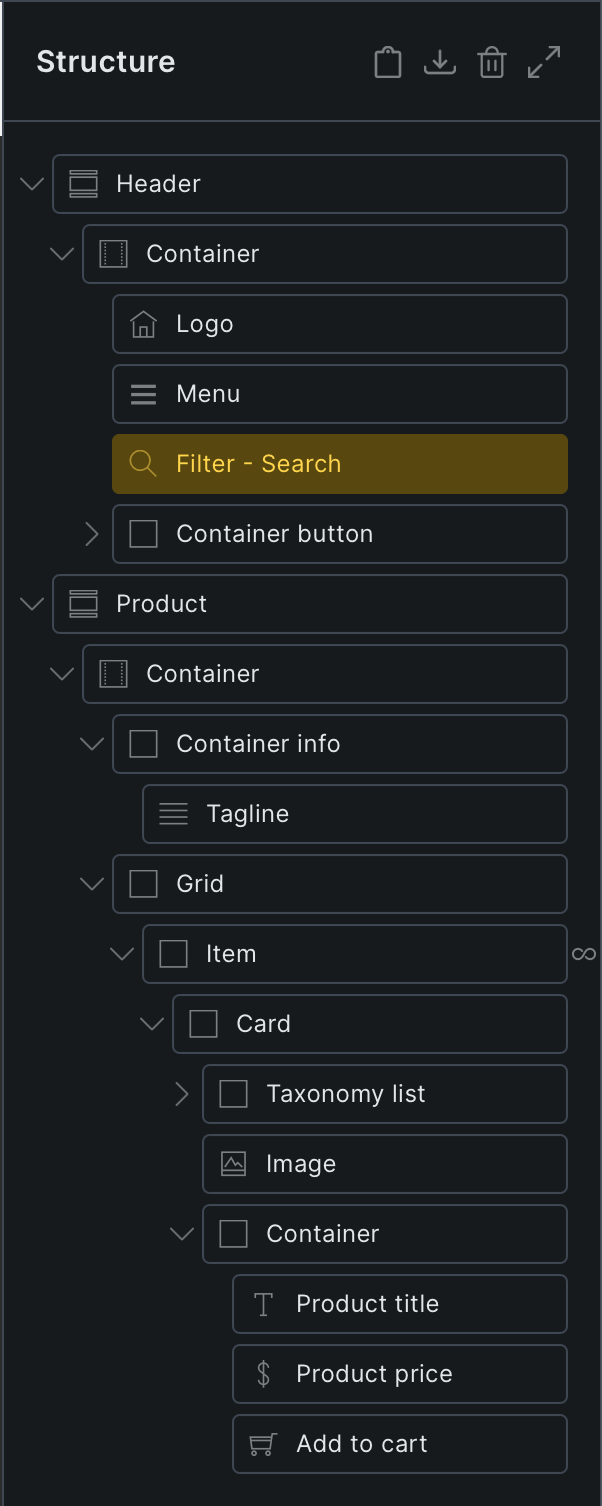
Add a Section having a query loop-enabled Block with the query type set to Products.

JSON link for copying the fully-built Section can be found below.
This is a BricksLabs Pro tutorial.

For full access login below or create your BricksLabs Pro account

Get access to all 630 Bricks code tutorials with BricksLabs Pro

Related Tutorials..

Appending WooCommerce Endpoint Names To My account Page Titles in Bricks

Appending WooCommerce Endpoint Names To My account Page Titles in Bricks

Adding the WooCommerce endpoint names, “Orders”, “Downloads” after the WooCommerce ‘My account’ Page’s title text at the various endpoint URLs.
Categories:
Pro
[WooCommerce] Sticky on Scroll Add to Cart section in Bricks

[WooCommerce] Sticky on Scroll Add to Cart section in Bricks

Setting up a sticky section that fades in when scrolling down and fades away when scrolled to the top.
Categories:
How to add a “Sold Out” badge for out of stock products in Bricks

How to add a “Sold Out” badge for out of stock products in Bricks

Looking to add a "Sold Out" badge for products in the Shop page for WooCommerce products that are out of stock when using Bricks' Products…
Pro
Similarly Priced WooCommerce Products Bricks Query Loop

Similarly Priced WooCommerce Products Bricks Query Loop

How to show products priced within a percentage of the current single product's price.
Categories:
Fix for “Your theme (Bricks Child Theme) contains outdated copies of some WooCommerce template files.”

Fix for “Your theme (Bricks Child Theme) contains outdated copies of some WooCommerce template files.”

Updated on 18 Feb 2023 Users of current (at the time of writing this) Bricks stable version of 1.6.2 and WooCommerce 7.4.0 will likely see…
Categories: