
This Pro tutorial provides the steps to show the addresses entered using a Google Map sub field of a ACF Repeater as markers on a Google map using Google Maps API in Bricks.
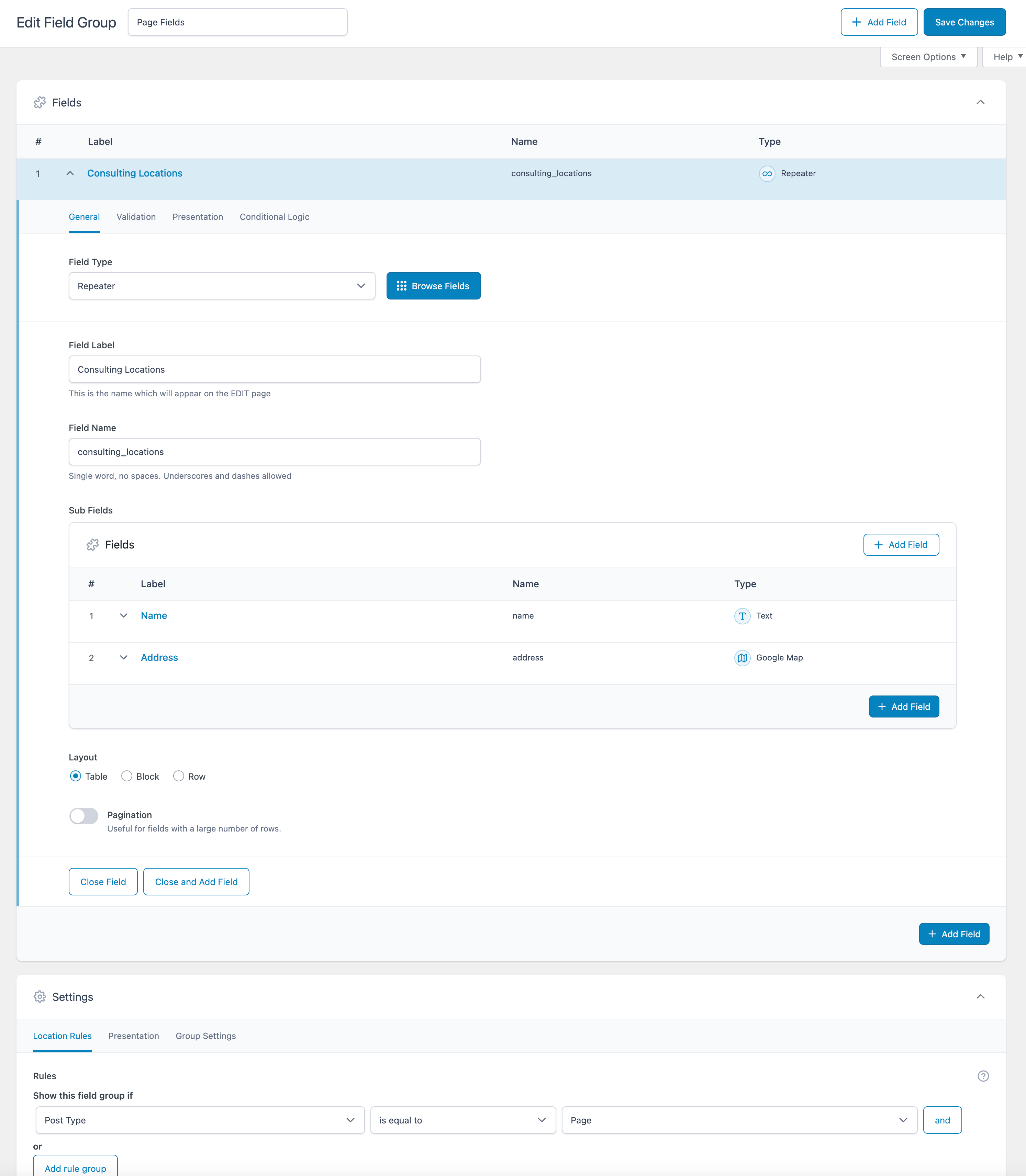
ACF Field Group:
Field being populated for a Page:

After implementing the tutorial, when the Page is viewed on the frontend:
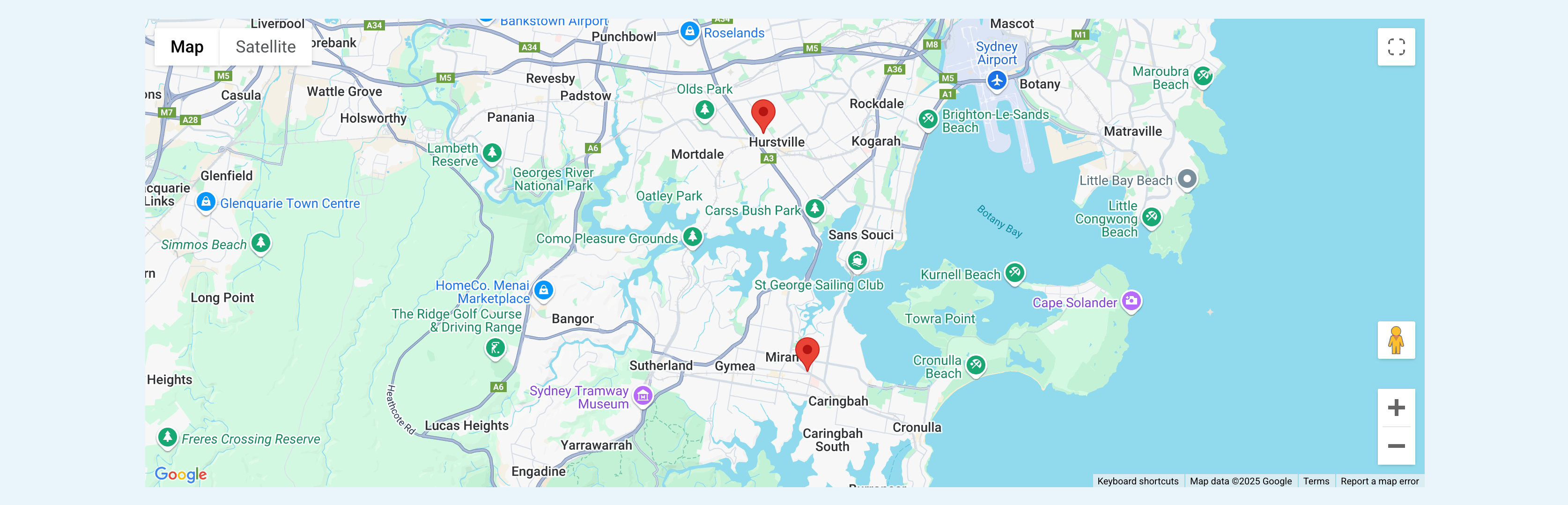
When a marker is clicked, the map gets centered to the clicked location and will show the address in the info window (popup):

Step 1
Enter your Google Maps API key at Bricks → Settings.
Refer to Google's Maps JavaScript API page and Bricks' academy page on setting up Google Maps API key.
Step 2
Create ACF field group.
In this example:
Field group label: Page Fields
Field label: Consulting Locations (Type: Repeater)|_ Sub Field label: Name (Type: Text)|_ Sub Field label: Address (Type: Google Map)
Location: Post Type = page
Step 3
Create/edit a Page and populate the Repeater by entering as many addresses as needed.
Step 4
Edit the Bricks template that applies to your post type, all Pages in this example.
Add a Section and inside its Container, a Code element.
Paste the following code:


