
Updated on 7 Dec 2025
This Pro tutorial provides detailed instructions to set up Bricks' Map element with additional location-based distance filtering or proximity search input.

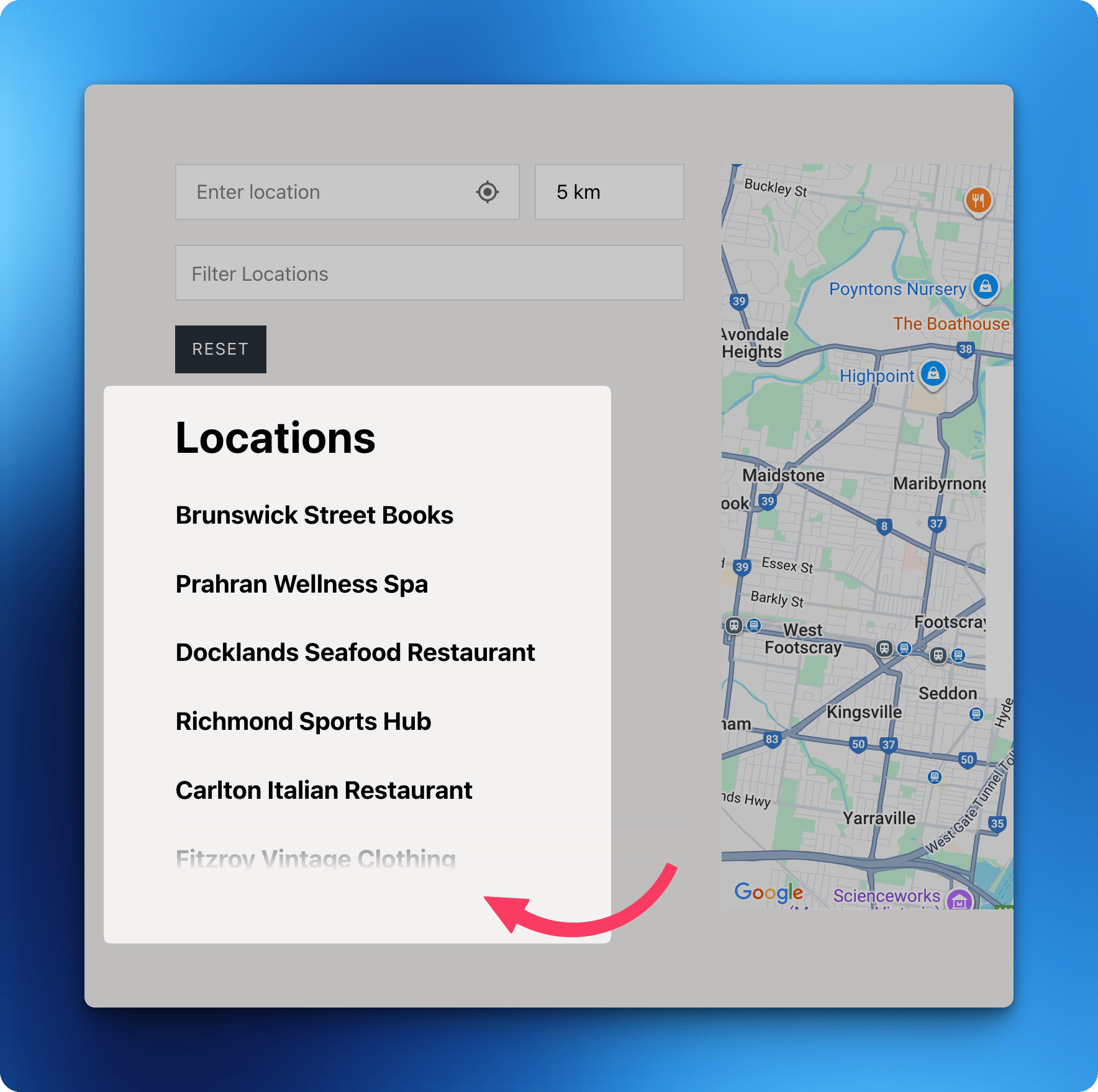
We shall create a custom shortcode for showing the location input field and distance dropdown.
[posts_map_filter unit="km" default="50" options="1,3,5,10,25,50,100,250"]
unit can be km or mi.


Clicking the crosshair/target icon asks user for their permission to use their location and when granted, fills their address in the input field.
Below that is the standard Bricks search filter so visitors can quickly filter the posts by their titles or content.

The list of posts (of Location CPT, can be of any post type) will be shown using a Bricks' Posts query loop in a fixed-height column with a gradient overlay indicating the visitor that there are more underneath.
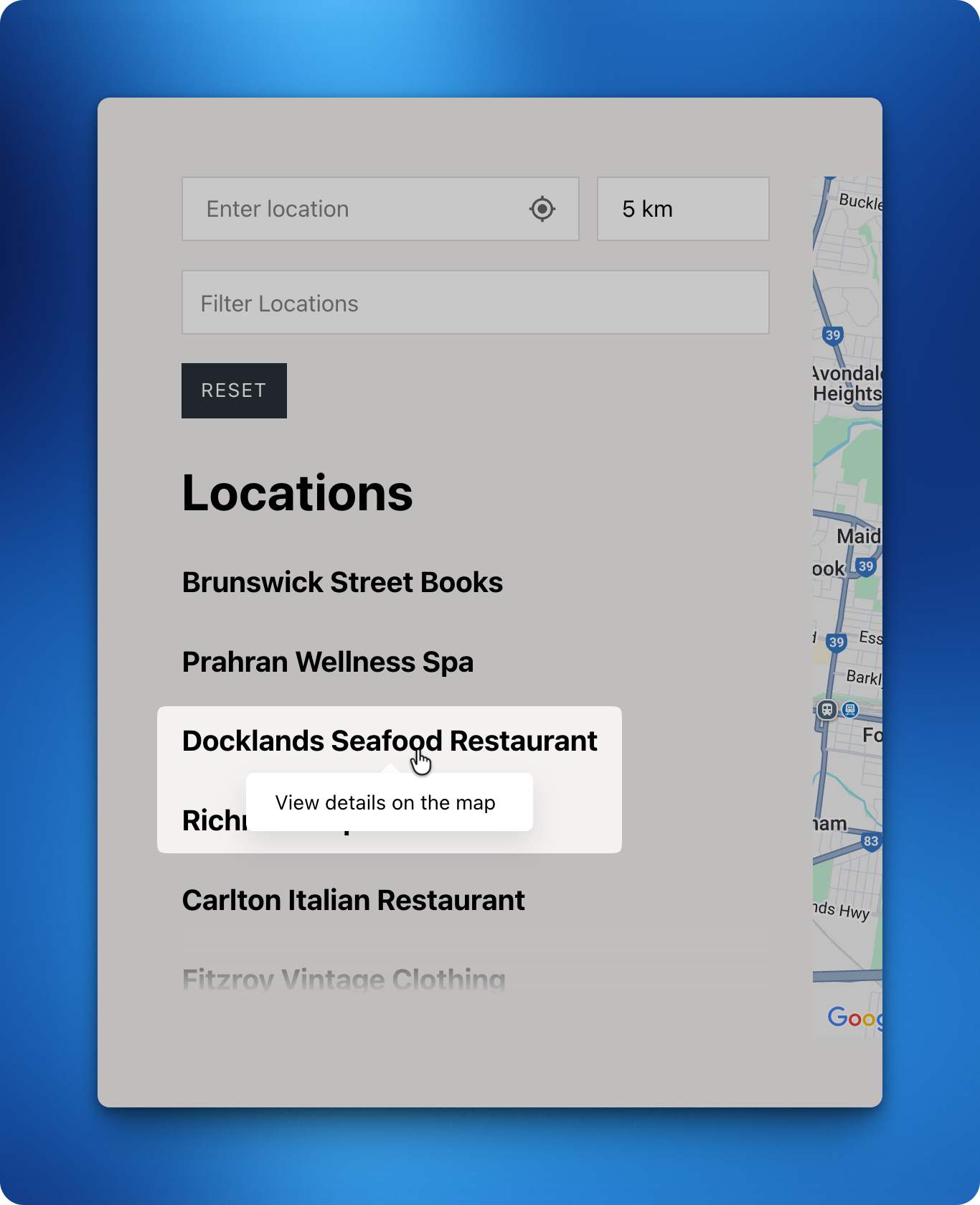
[optional] Hovering on the post title will show 'View details on the map' tooltip. This is done using BricksExtras' Popovers / Tooltips.
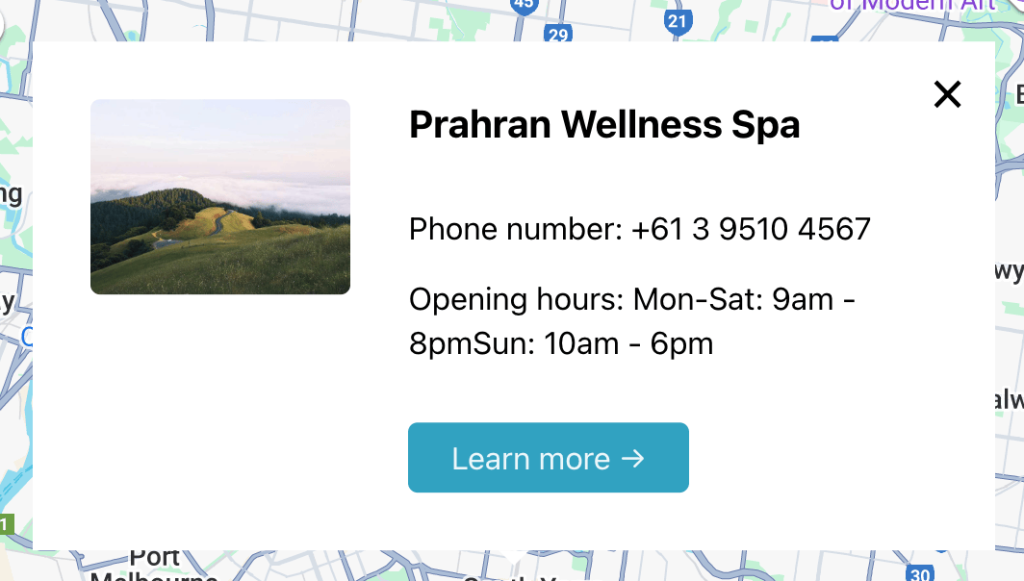
Clicking a post title will open the info window for that post on the map.

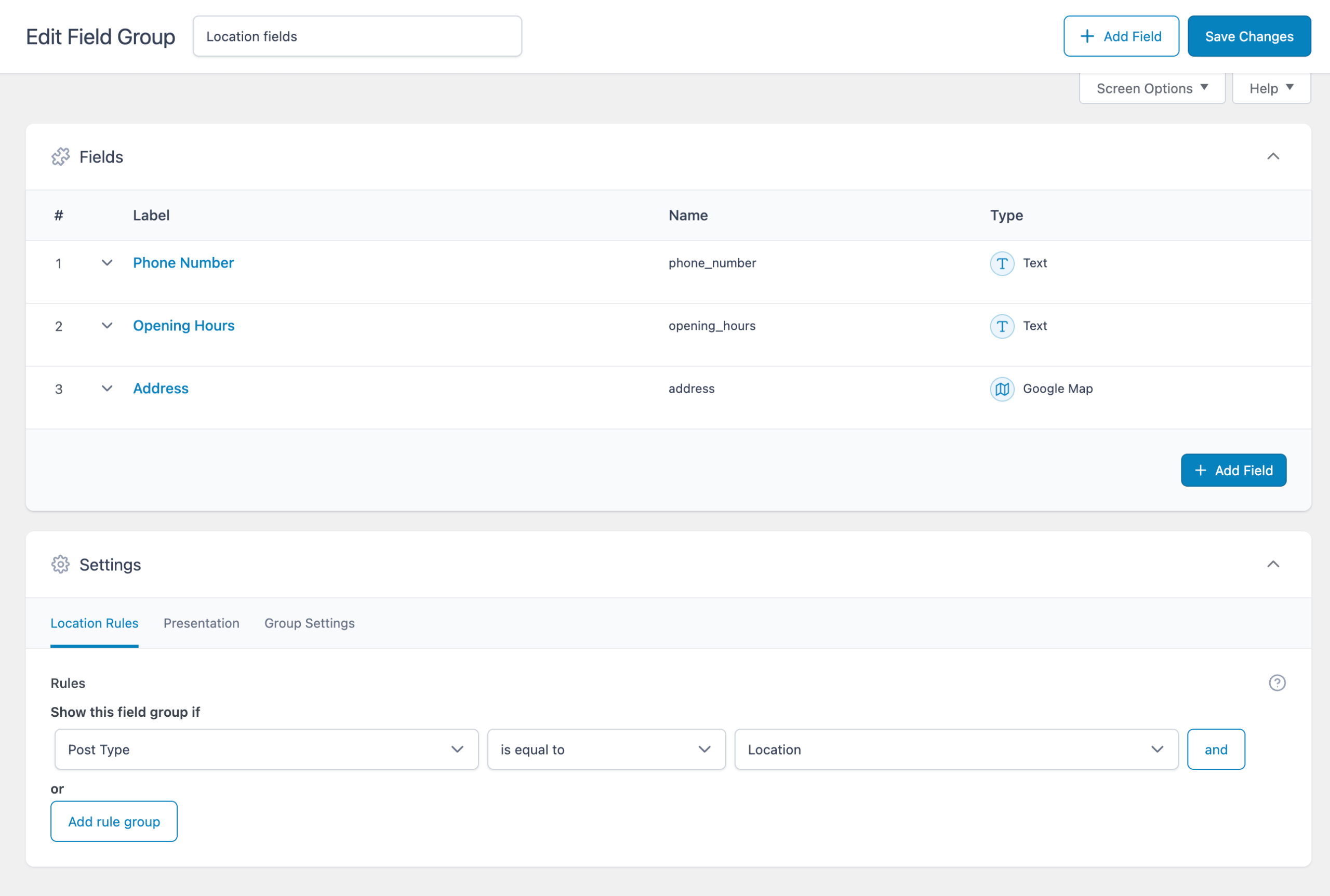
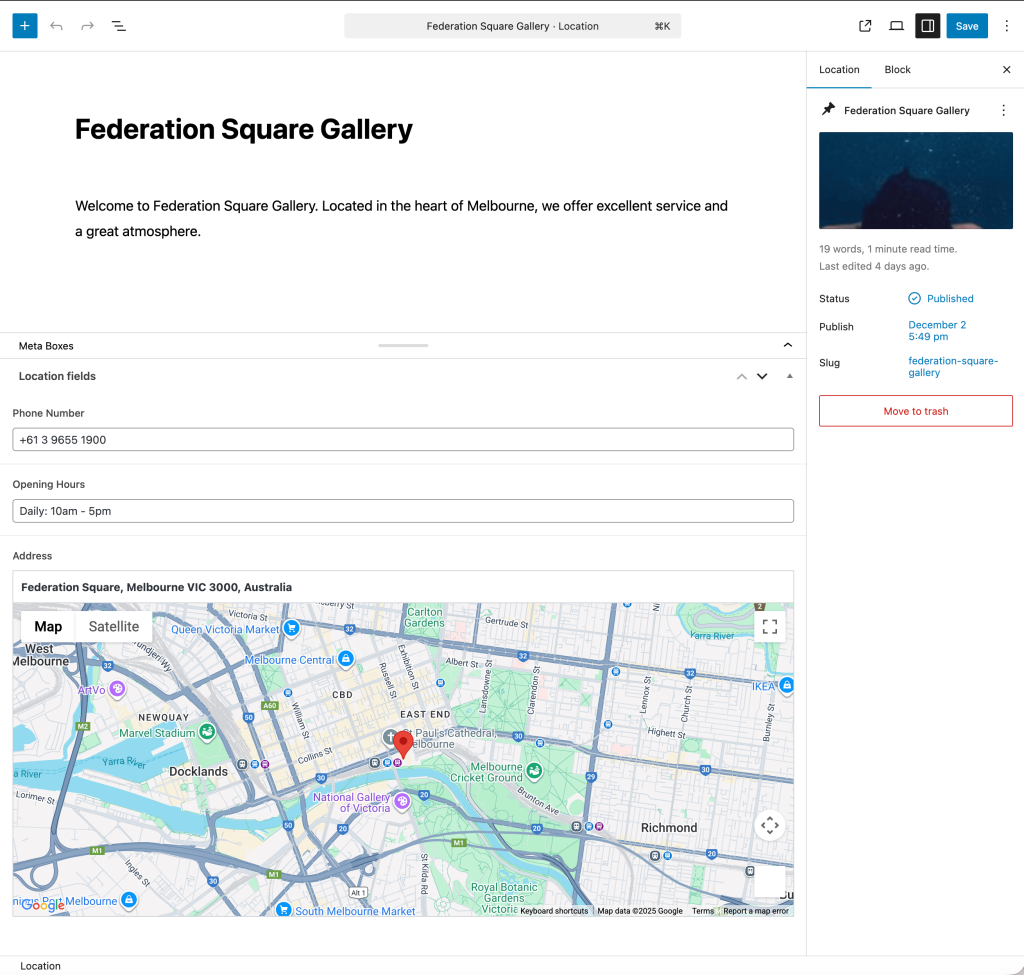
The address for each location post is set using ACF's Google Map field.

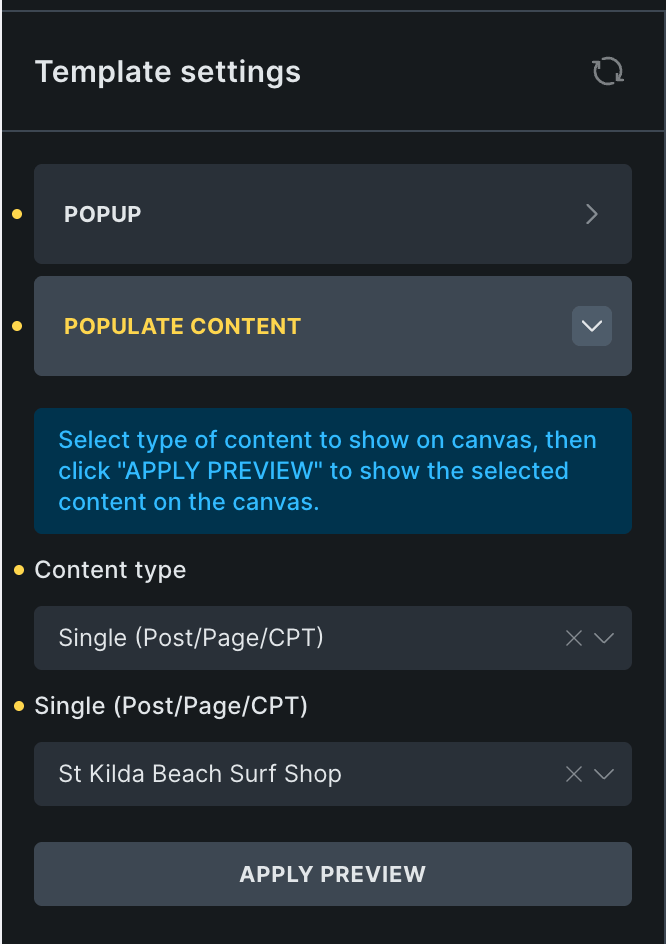
We have full control on what appears inside the info window when the red marker is clicked anytime or when a post is clicked and the info window opens on the map to show that post's address. This is set in a Bricks template of the type Popup.
In this tutorial, we shall show the post title, values of phone number and opening hours custom fields and a read more button that links to the post's permalink.
Input fields can be reset at any time by clicking the Reset button. We shall also trigger it when text inside the proximity input is cleared.
Step 1
Get your Google Maps API key if you don't already have one. Doc
Paste your Google Maps: API key at Bricks → Settings → API keys and save settings.
Step 2
Create your CPT (optional, the standard posts can also be used) and the corresponding ACF field group.
Step 3
Create some posts of your post type and populate the ACF fields, especially the address.
Step 4
Create a Bricks template of the type Popup named say "Map info box".


JSON of the Container (select all the text, copy and paste in Bricks editor)
Step 5
If the Bricks child theme is not active, upload it and make it active. This can be done even if the site is live.
Create a directory named assets in your child theme directory.
Create a directory named js in the above directory.
Create a filed named posts-map-filter.js in the above directory having the following code:


