
In the Bricks Facebook group a user asked:
Hey! Any idea how to filter ACF Repeater Field with relationship Field?
The idea it's the next one:
1. One CPT Called "Courses"
2. Global Options with a TimeTable with repeater Field, on this timetable, with some fields like "Day", "Price", and "Course (Relationship field)"
3. Subfield with "Relationship" to link with the Course
4. Show on the courses single post only the Rows that are linked.
The idea it's manage from one place the table and show dinamically the fields that are linked on the specific course to avoid go course by course changing the content.
Thanks in advance

Consider this scenario:
CPT: course
Options page: Site Settings
Field group for Site Settings:
time_table(Repeater)day(Date Picker)price(Number)course(Relationship)
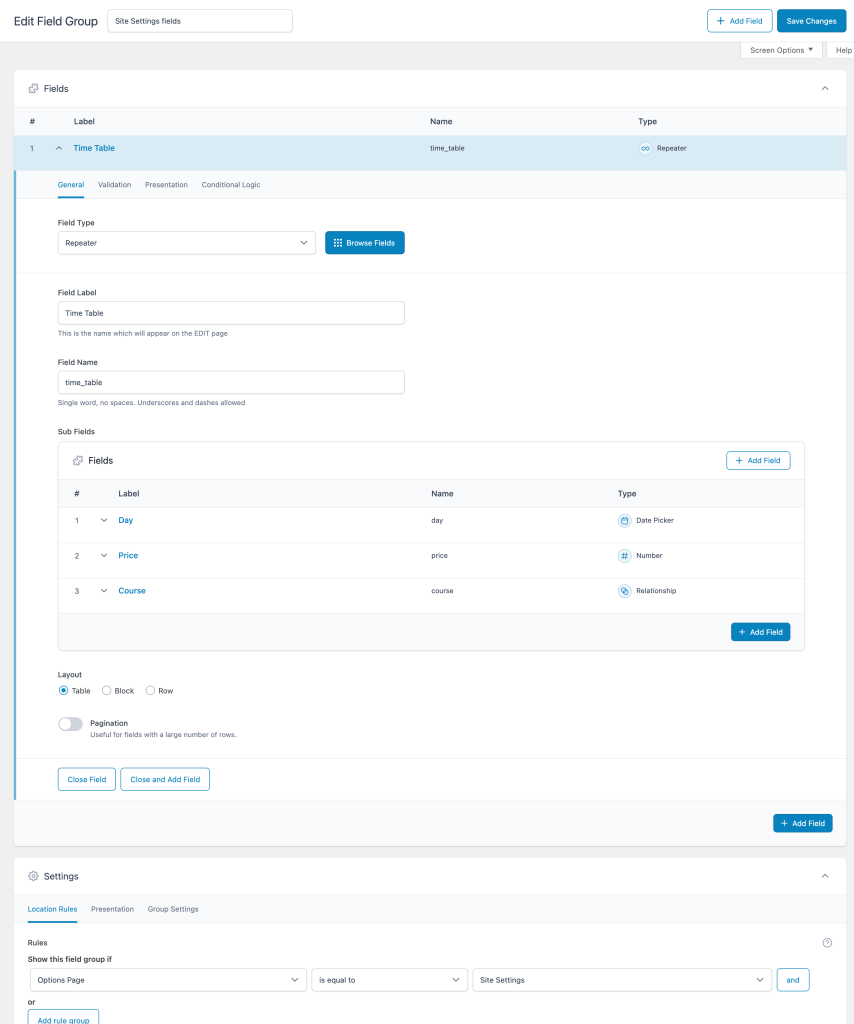
Repeater Field being populated on the options page:

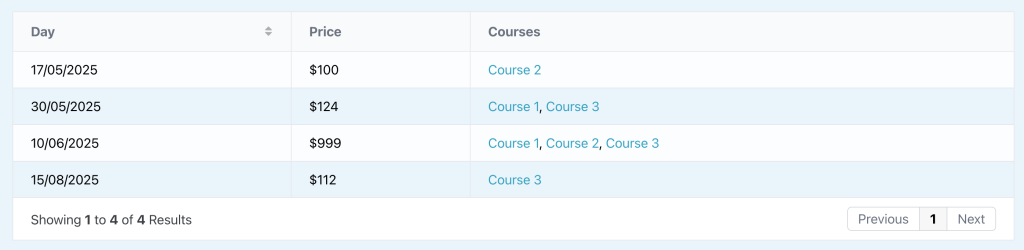
Requirement 1: output the courses in a tabular format on a /courses listing page/archive
After implementing the tutorial:
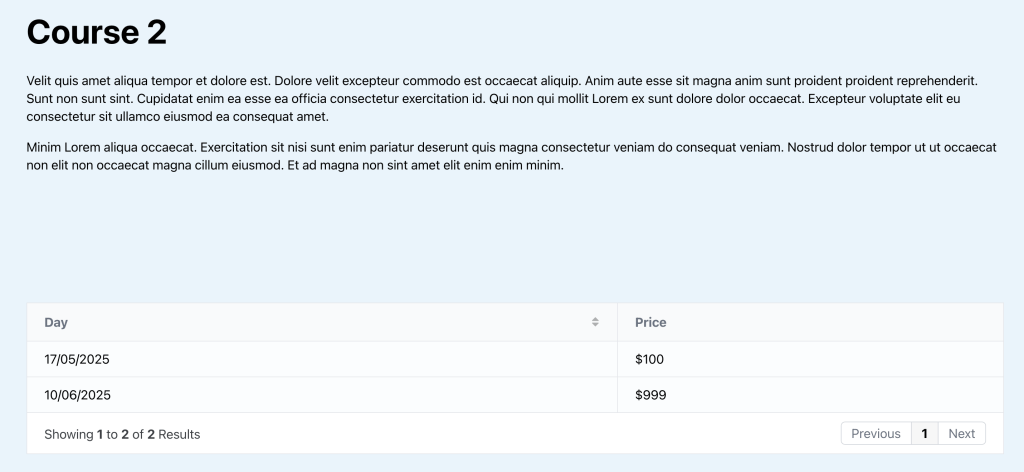
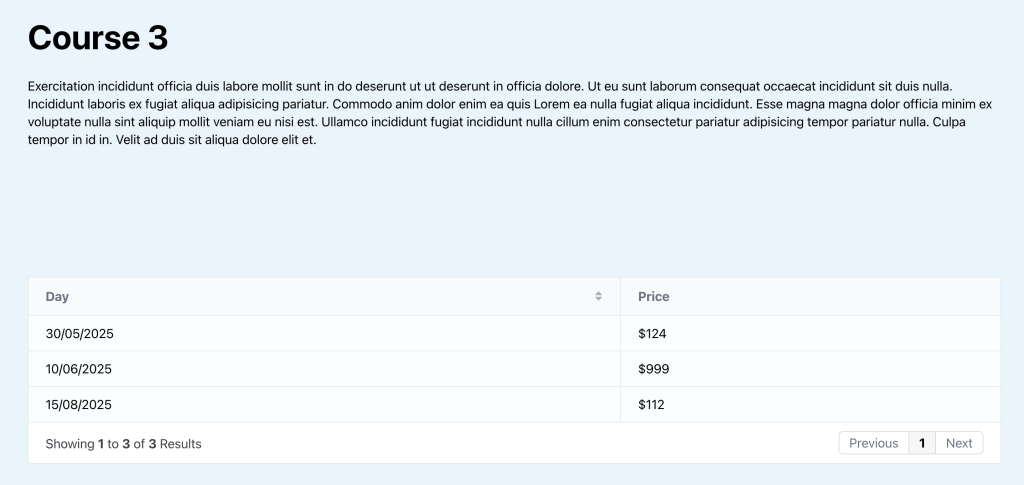
Requirement 2: output only the rows that have the current single course being viewed
After implementing the tutorial, Course 1 post page:

We chose to not include the Courses column because the user expects to see only those that are relevant to the current course.
Course 2 post page:
Course 3 post page:
This Pro tutorial provides the steps to set up a dynamic CPT ACF Repeater data table (with optional search, pagination, column sorting etc.) that loops through the rows and outputs the data populated on the settings page in columns on a page plus, filter the data table to only include the rows that contain the current single course via bricks/query/result filter when viewing single courses.
What is covered in this tutorial is also a good way to implement events in WordPress.
Step 1
Install and activate ACF Pro.
Create the Courses (or Events) CPT.
Add a Settings page.
Add a field group on the above settings page having a Repeater with a Relationship sub field.
Visit the settings page and add rows.
Step 2
Install and activate BricksExtras. We shall use its Dynamic Table element.
Edit the page (a static Page or the CPT archive template) in which you'd like to show all the courses as a data table with Bricks.
Add a Section and inside its Container, Dynamic Table element.
Enable query loop and for the query type, select your ACF Repeater.
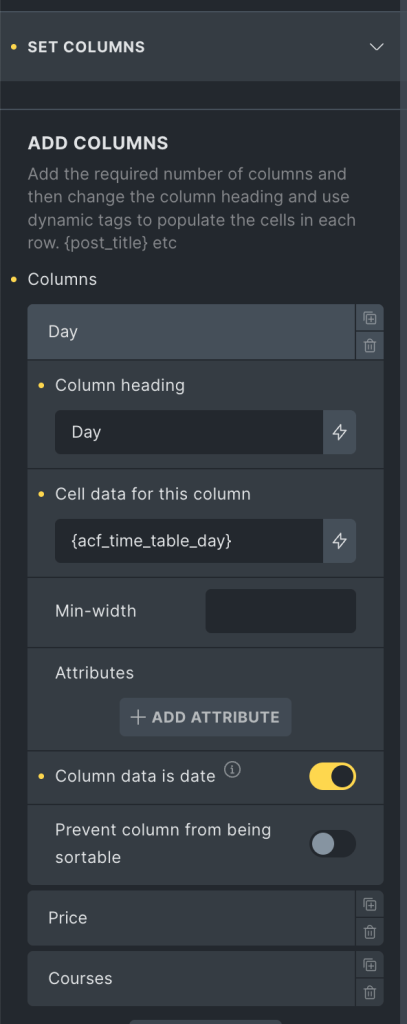
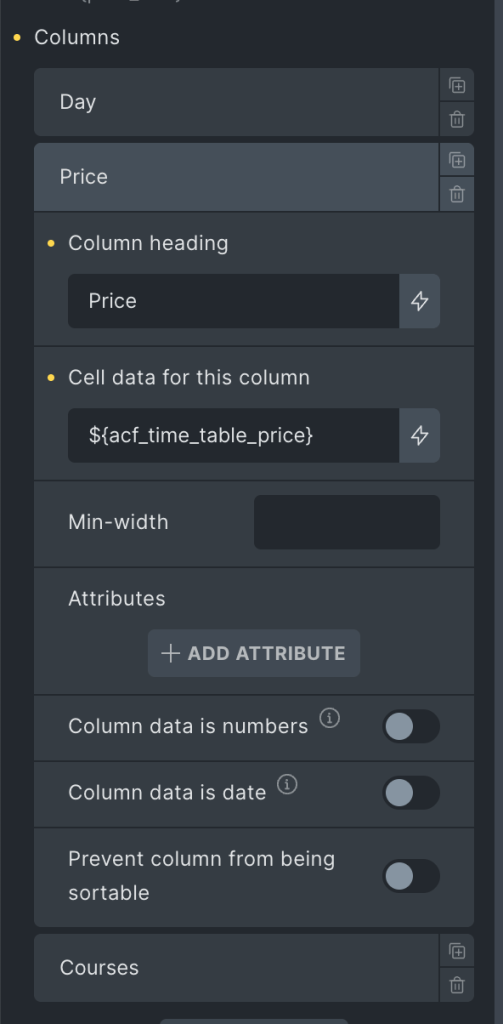
Add columns.

Step 3
Create a single template for your CPT and edit it with Bricks.
Copy the Section from the above page/template and paste.
Add the following in child theme's functions.php (w/o the opening PHP tag) or a code snippets plugin:


