Anyone knows how to show the content from Metabox group field, based on Bricks condition using subfield from Metabox group? Let me explain...
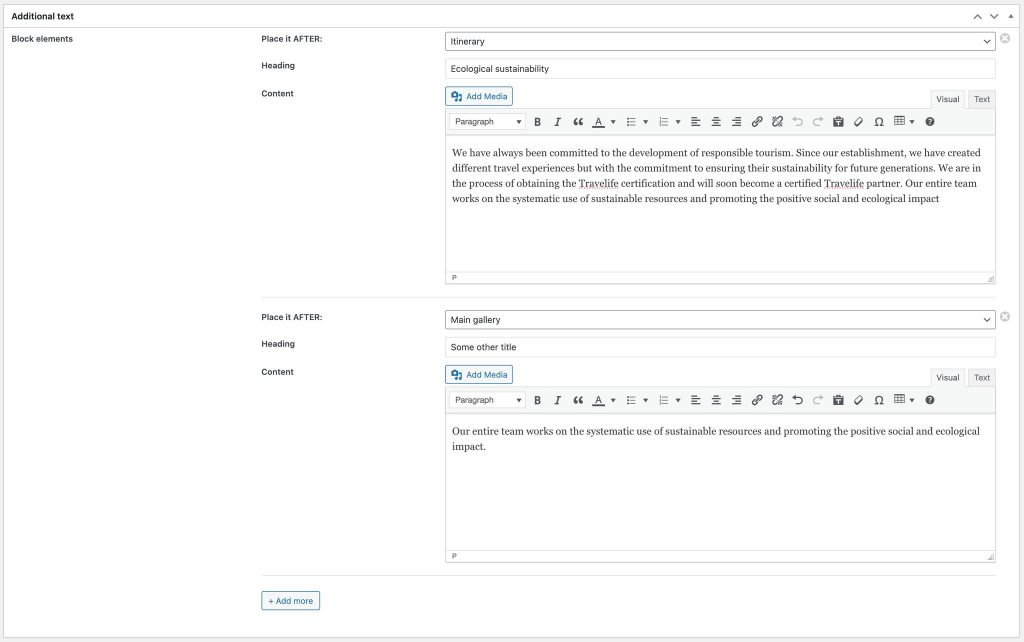
I have various places in the template to show the different content from the Metabox group (MB Group has clonable blocks). The client could be able to clone the MB Group, and set the position for showing that group element inside the template.
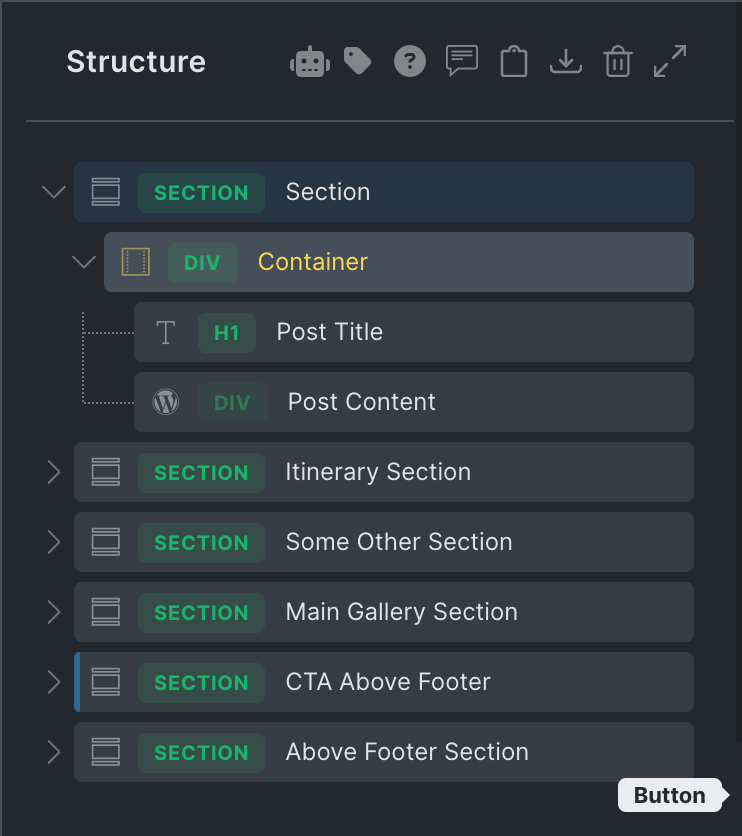
I have a screenshot (attached), and it works now - but just for the first created group element. Every additional is just not showing. I mean, I can "move" around (showing it on different places inside Bricks template) the first element created by the MB Group (using "Place it AFTER" selection), but that doesn't work for the additional clones.
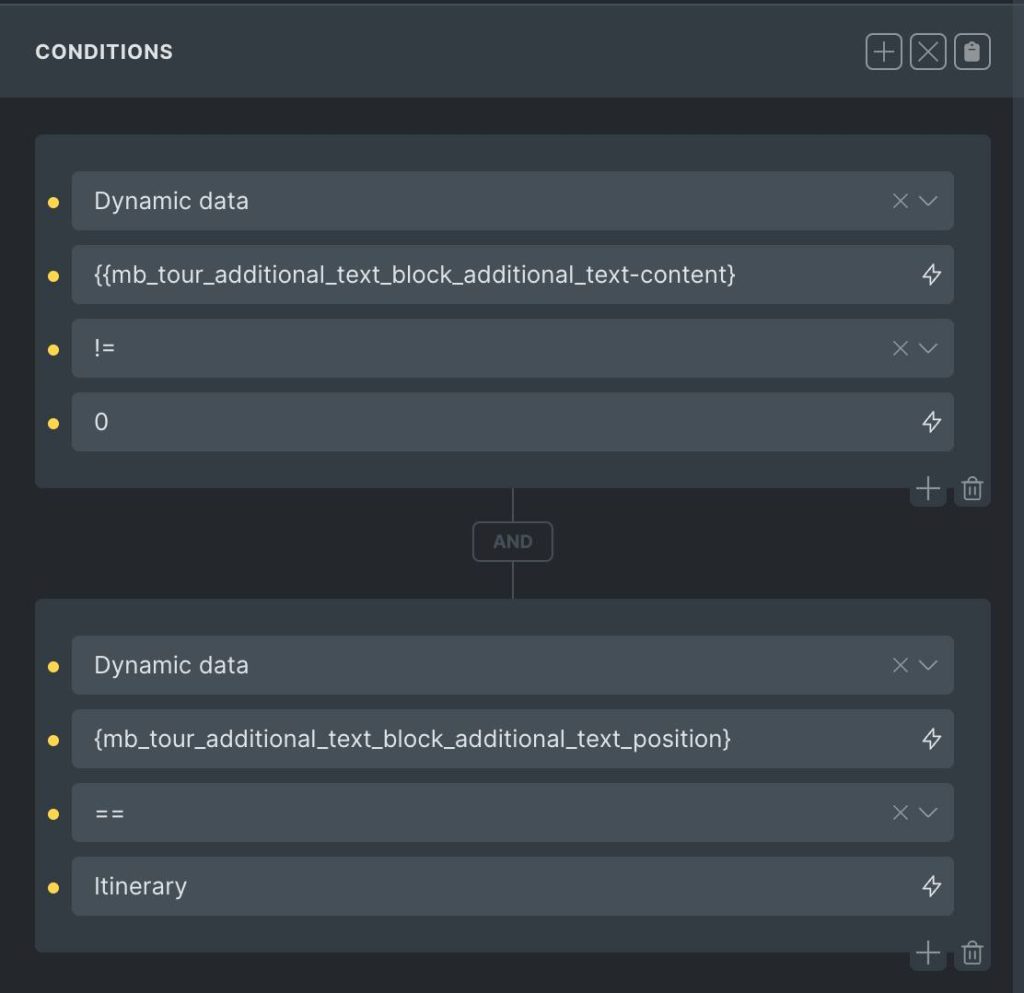
The second screenshot is an example how condition looks like (in this example condition for showing MB Group content if client choose "Itinerary" from selectbox).
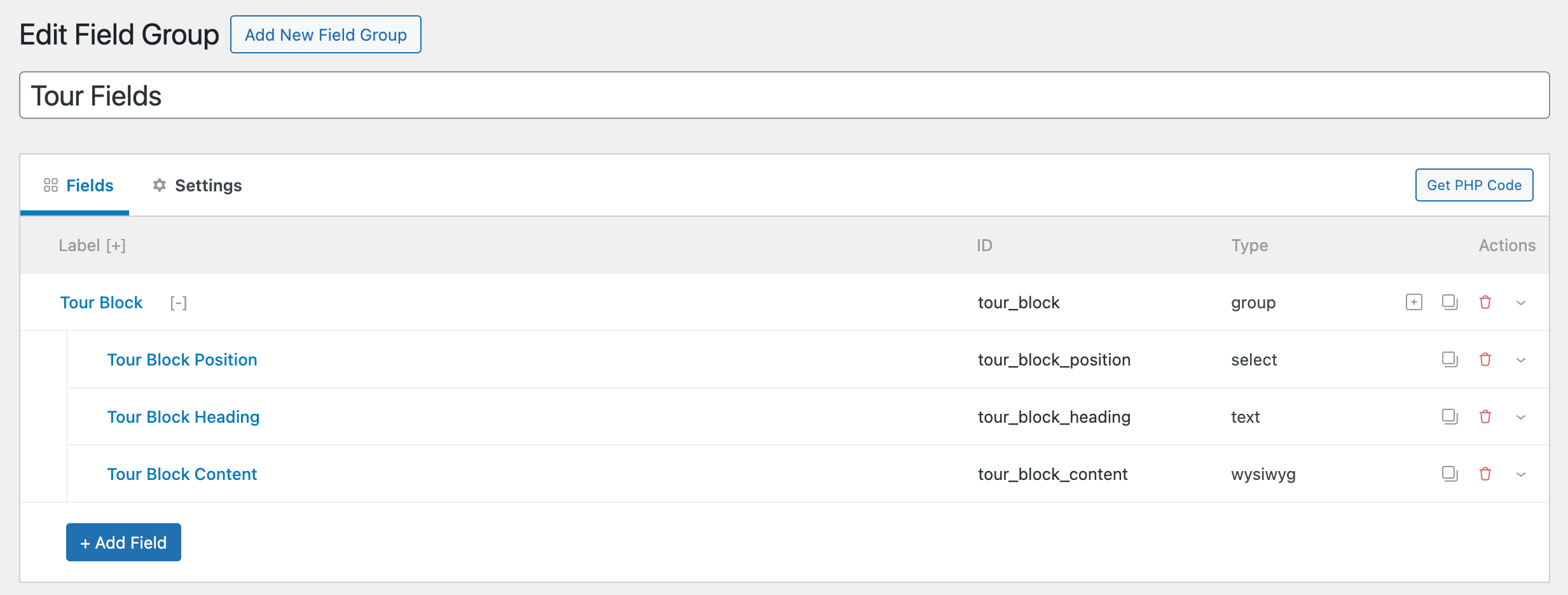
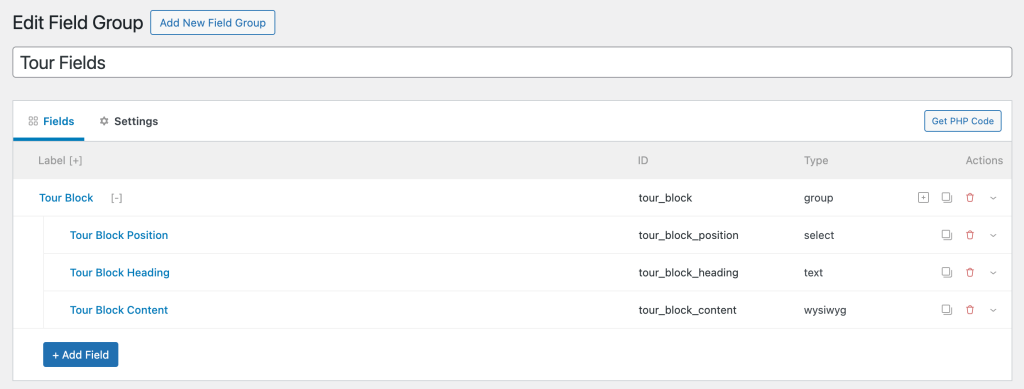
Consider this cloneable Meta Box field group for a Custom Post Type called Tour:
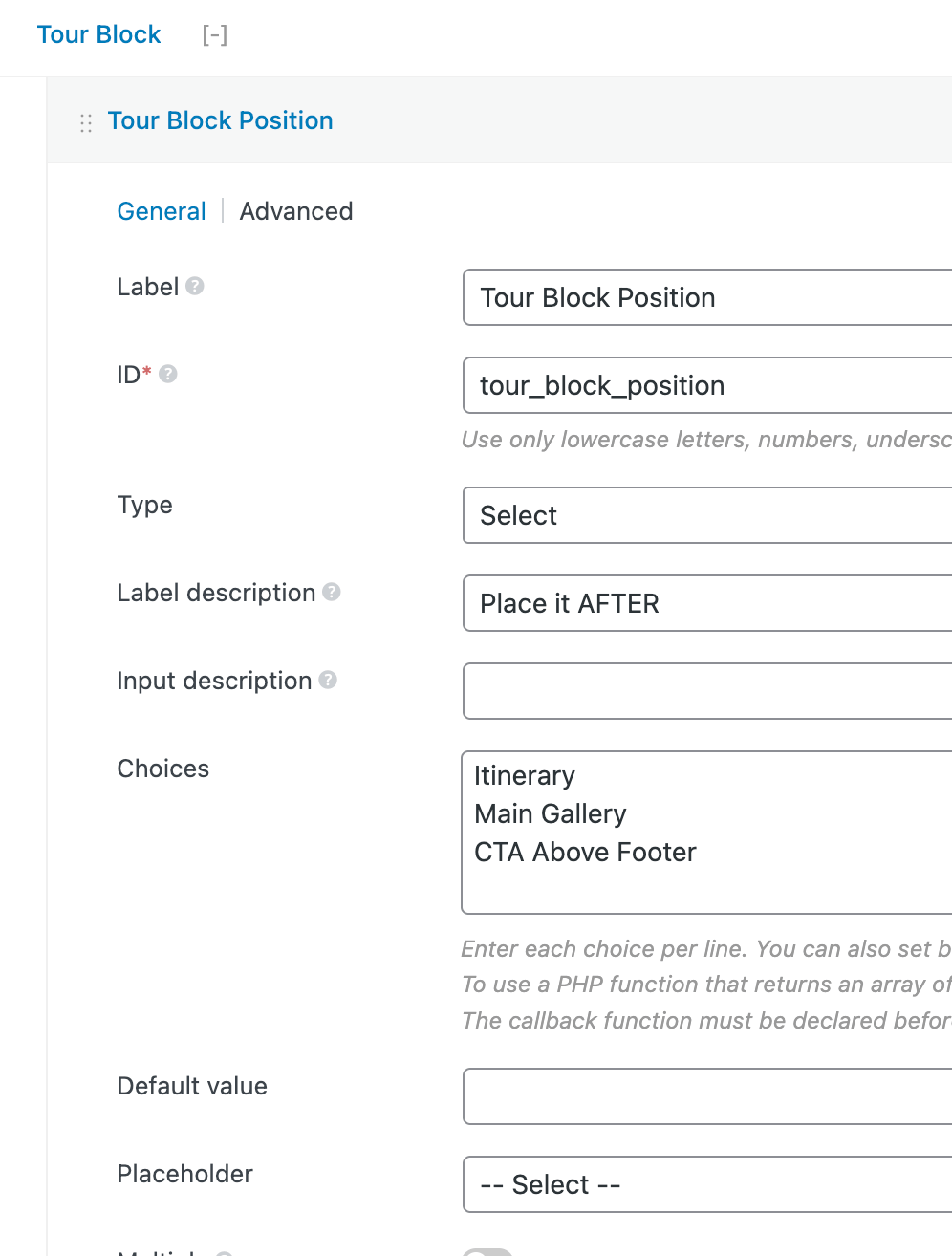
with the Tour Block Position select subfield having these options:
A Tour post being edited:
The Bricks single Tour CPT template:
It contains a section for showing the post title and content, and a few other sections.
Remember that there are three block positions set in the field group: (AFTER) Itinerary, Main Gallery, CTA Above Footer.
Therefore, three corresponding sections labelled 'After Itinerary Section', 'After Main Gallery Section' and 'After CTA Above Footer Section' have been added after the respective sections.
All these three 'After sections' have the Meta Box group query loop. By default, the output will contain all the group's items/rows.
The requirement is to limit or filter the items to only those that match the selected position. That is, all items that have an 'Itinerary' set as the position should be shown in the "After Itinerary Section" query loop. All items that have 'Main Gallery' set as the position should be shown in the "After Main Gallery Section"'s query loop. All items that have 'CTA Above Footer' set as the position should be shown in the "After CTA Above Footer Section"'s query loop.
Also, each 'After section' should be output only if at least 1 item in the MB group has the corresponding position selected. For example, the 'After CTA Above Footer Section' should not be output if there is no item having the 'CTA Above Footer' selected in the 'Tour Block Position' select subfield.
When done, sample output:
This Pro tutorial provides the steps for defining a custom function that checks if the specified position exists in the Meta Box group rows so it can be used for conditional display of the 'After sections' and using bricks/query/result to filter Bricks Meta Box group results based on element ID and position mapping.