

In this tutorial, we’ll learn how to dynamically change the text of a basic text element based on the viewport width in Bricks.
Table of Contents
Introduction
Sometimes your client will ask you to display different text content on desktop and mobile. The easy approach is to create two different DOM elements and set different CSS display properties based on the media queries. While this approach can be valid in some particular cases, it may have some downsides:
- If the content of both desktop and mobile is similar, it may be considered as duplicated content by Google and penalize your SEO.
- It creates 2 different DOM elements instead of 1.
Let’s see a different approach used by other pagebuilders that doesn’t create duplicated content and use a single DOM element.
The JavaScript
Paste the following code to your page. My preferred method to enqueue my scripts is described in this article, but feel free to use the method you are the most comfortable with.
window.addEventListener('DOMContentLoaded', () => {

   // Query the elements that have data-content as attribute
   const els = document.querySelectorAll('[data-content]');

   // Stop the function if there is no elements found
   if (els.length < 1) return;

   // Set the media query
   const mediaQuery = window.matchMedia('(max-width: 768px)')

   // Function
   const replaceContent = (e) => {

      let content;

      // Loop inside each element
      els.forEach(el => {

         // Parse the content attribute
         const attr = JSON.parse(el.dataset.content);

         // Desktop text
         content = attr.desktop;

         // Check if the media query is true
         if (e.matches) {

            // if the media query is true, change the mobile text
            content = attr.mobile;

         }

         // Change the text
         el.textContent = content;
      })

   }

   // Resize
   mediaQuery.addEventListener('change', replaceContent);

   // On load
   replaceContent(mediaQuery);

})
Note that we set the breakpoint to 768px. You may change the value to the one that suits your needs.
The data attribute
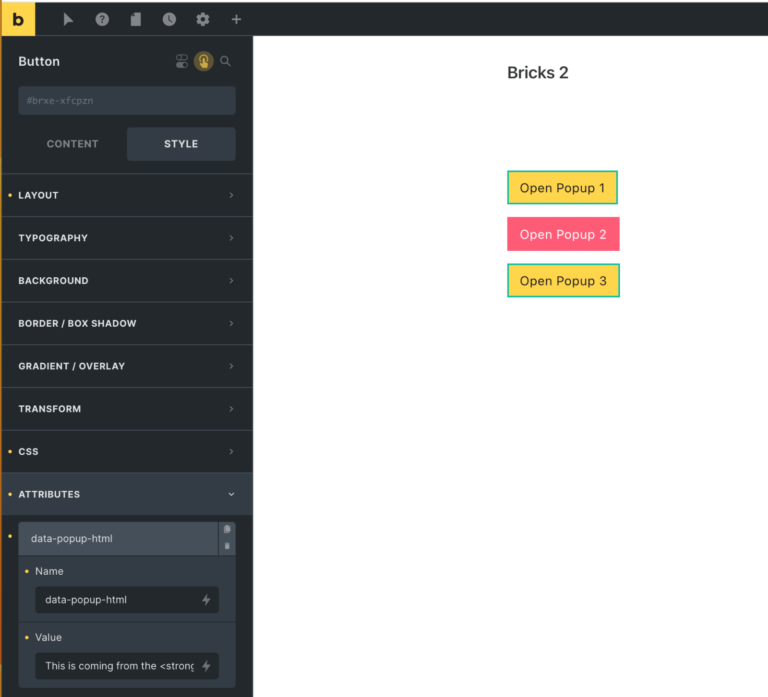
Now let’s jump on the text element and create a data-content attribute:

Inside the value field, we’ll paste a JSON object with both the desktop and mobile text structured as followed:
{
   "desktop":"Hello World!",
   "mobile":"Hi World!"
}
And that’s it!




1 comment
Drew
I solved this problem by creating a pseudoelement (::before) for a title element "world." Then just set the content property to "hello" on the desktop and "hi" on mobile.