
Updated on 14 Mar 2024
In the BricksLabs Facebook group a user asked:
What is the best method to remove fields from the Bricks “Comments” element?
I want to remove the “Name” and “Website” fields from the bricks comment element. I’ve tried using snippets that work on the default WP comment form but unfortunately they don’t seem to do anything to the Bricks comments element fields.
I would love some guidance, please!

This tutorial provides the steps to remove Name and Website fields from the post comment forms in Bricks.
Before:
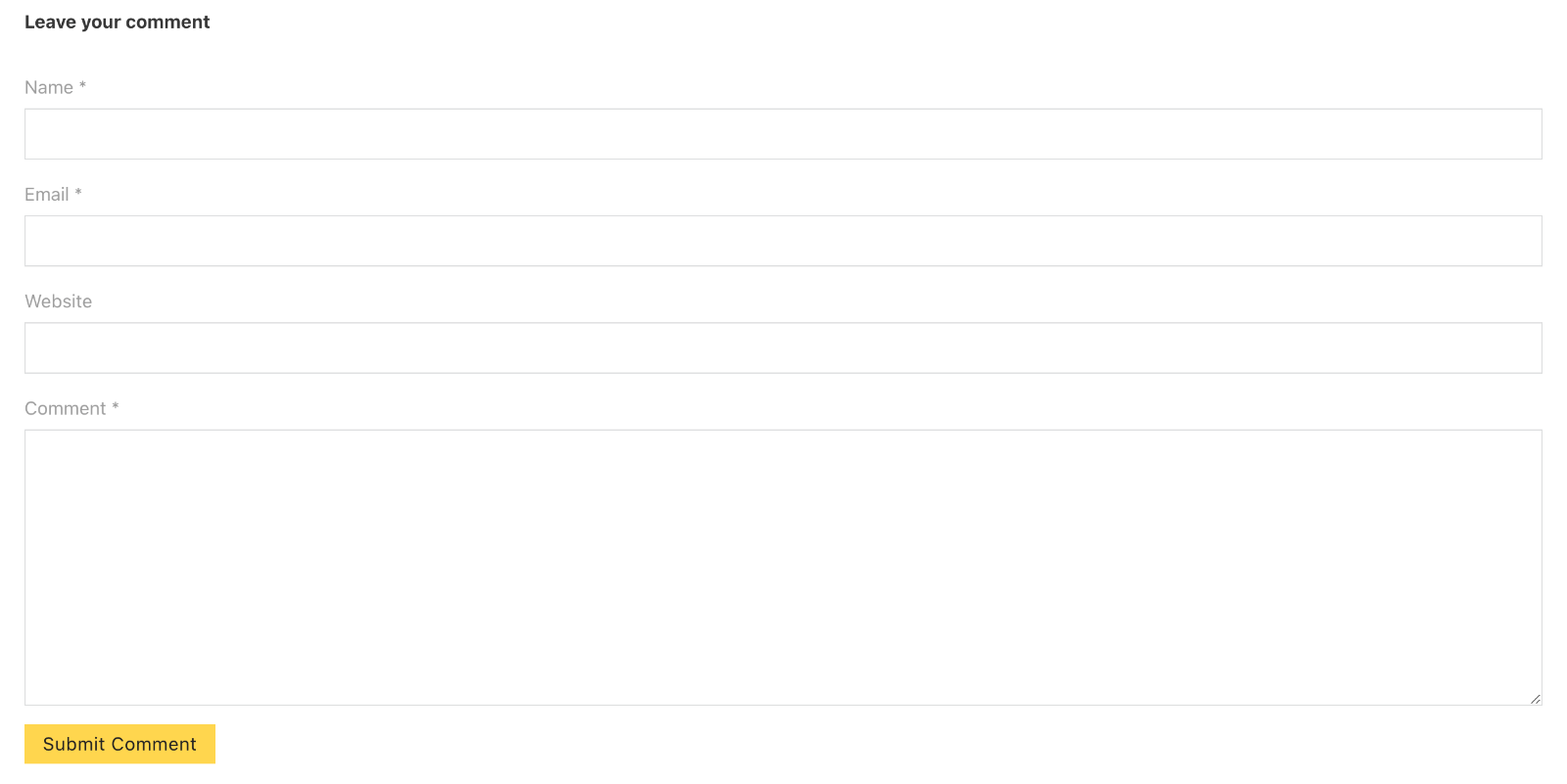
After:

Bricks 1.9.7 and Later
Add a Comments element in your single template.
Leave its Source as ‘Bricks’.
From the FIELDS select control, choose Email.

Prior to Bricks 1.9.7
This will also work in 1.9.7 and later.
Step 1
Let’s use comment_form_fields filter to remove the Name and Website fields from the comment forms.
Add this in your child theme’s functions.php or a code snippets plugin:
// Remove Name and Website fields from the comment form
add_filter( 'comment_form_fields', function( $fields ) {
	unset( $fields['author'] ); // Name field
	unset( $fields['url'] ); // Website field

	return $fields;
} );
Step 2
While we have removed the mandatory Name field from the frontend, the form still treats it as a mandatory field and won’t let us submit the form unless it is filled.
In the WP admin, go to Settings → Discussion and uncheck “Comment author must fill out name and email” under “Other comment settings”.
Step 3
Since WordPress only allows us to remove the required condition for both Name and Email as a pair, we now need a way to make the Email field required.
Add this in your child theme’s functions.php or the code snippets plugin:
// Make Email field in comment forms required.
add_filter( 'preprocess_comment', function( $fields ) {
	if ( $fields['comment_author_email'] == '' ) {
		wp_die( 'Error: Please enter a valid email.' );
	}

	return $fields;
} );
Step 4
Let’s add an asterisk next to the “Email” label in the form to indicate to the visitor that it is a required field.
Edit your single post template and add this at Settings (gear icon) → PAGE SETTINGS → CUSTOM CODE → Custom CSS:
.comment-form .form-group:first-child label::after {
  content: " *";
}
References
https://developer.wordpress.org/reference/hooks/comment_form_fields/
https://developer.wordpress.org/reference/hooks/comment_form_default_fields/
https://www.howtosolutions.net/2015/10/wordpress-comments-making-email-field-optional/
https://wordpress.stackexchange.com/a/294397/14380
add_filter( 'comment_form_fields', 'bricks_comment_form_fields_order' );in wp-content/themes/bricks/includes/utilities/comments.php.


4 comments
David Nickson
This is amazing!
When I submit a comment the page reloads and just takes you to the top of the blog. This means users don't have any signal that their comment sent when you have manual approval on.
Is there a way to not make it reload and instead show a message saying "Thank you for submitting your comment, a moderator will review it."?
Cheers
Sridhar Katakam
Try https://wordpress.org/plugins/wp-ajaxify-comments/.
If it doesn't work, please contact Bricks' support.
Keep us updated :)
Usman Khurshid
This uses jQuery. Is there any way to avoid jQuery and achieve this functionality?
Usman Khurshid
This worked for me. Thank you. But if I want to unlink all the URLs in comments, how would I be able to do that in Bricks?
Also, how can I add the notify me when new comments are added like yours?